Using Shelf
Bringing books in
Add & import, at the top of Your books in the menu, has every way to bring books in on one page: a book at a time (by hand, or files), a shelf at a time (scanning), from another app (Goodreads, StoryGraph, any spreadsheet, Calibre, Audiobookshelf, Hardcover, Readwise, a Shelf backup), and something new (Open Library, free books). A new, empty shelf shows the main ones on Home.
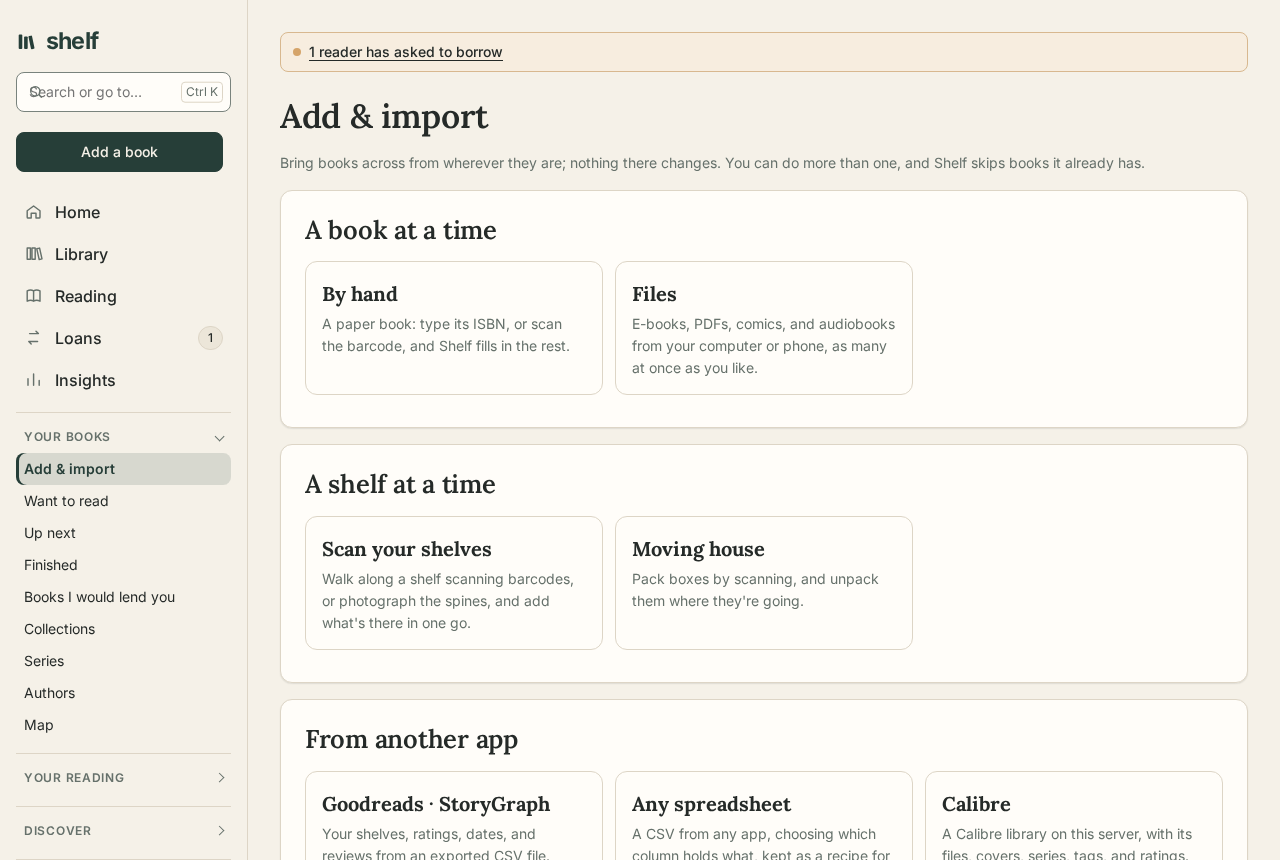
Books come in five ways, and Shelf keeps out what you already have.
A new shelf opens on a welcome with a card for each way below, so the first step is bringing what you already have.
By hand
Add a book takes a title and author, or an ISBN that fills the rest from Open Library. If the same book is already on your shelf, the form says so. If another reader has it on an open shelf, the form says that too, with a button to ask to borrow it instead.
Scan the barcode reads the ISBN from the back of a book with a phone's camera, then looks the book up. Where Shelf is opened over https:// (or on the computer it runs on), the camera shows live and reads the code as soon as it is in view. Over plain http:// on your network, browsers keep the camera to themselves, so the button takes a photo of the barcode instead, which works just as well. The barcode is read in the browser; the picture never leaves the phone.
Scanning a pile of books
Under Your copies, Scan books keeps the phone's camera open and reads each barcode as it comes into view, so a pile of books goes in without a form for each. Choose Adding books, and where they're going if you like, then Start the camera. Each ISBN read joins the list, saying when you have the book already; uncheck any you don't want, choose the status to give them, and Add. Each is looked up in the catalogs and added with its details, all together, so a mistaken batch can be undone at once. A code no catalog knows stays on the list to be added by hand.
Where the page isn't secure (plain http to another computer), browsers keep the camera to themselves; take a photo of each barcode instead, or type the numbers.
Checking a shelf
Choose Checking a shelf and the place, such as a room or a box, and go along it scanning each book. Each code read says whether the book belongs there, is noted somewhere else (It lives here now moves it), or isn't in your catalog at all (Add it). The books noted there and not yet seen are listed, to tick off by hand when one has no barcode. Finish the check can tag the books not seen missing, together, so they're easy to find and the tag comes off at once if they turn up.
A run, either kind, is kept as you go: stop, and take it up again later on any device, from the same page.
Photographing the spines
In a run, Or photograph the spines takes a photo or two of the shelf instead of a barcode at a time. The server reads the titles with Tesseract (the same tool that reads scanned PDFs, so it needs to be installed) and matches them to your catalog: on the distinctive words of each title, forgiving a misread letter, with the author's name making a short title sure. In a shelf check, the books found that belong at the place are ticked off. Lines read clearly that match nothing are listed under Read, but not in your catalog; Find it looks one up in Open Library, and in an adding run Add to this run puts the book on the run's list, to be added with the others at the run's place (in other runs, Add it opens the book form with the place filled in). Spines stand on end, so the page sends each photo turned both ways too; a photo straight on, in good light, reads best.
With the camera running, it reads barcodes as they come into view but not spines on its own: point it at a stretch of shelf and press Read the spines in view to read what it shows, then move along and press it again. Each reading adds to the books found so far, so a whole shelf can be read a stretch at a time. Books found that aren't noted at the run's place are ticked to be put there: untick any the spines were misread as, then Note them at the place, which in a check also ticks them off. The move is one change, undone together from Trash & undo. Hold the phone still and close enough that the titles are easy to read on screen.
From files
Under Add a book, Or add from files takes as many files as you like at once, up to 1 GB in total (Uploads:MaxAudioMegabytes changes it), and makes a book of each:
| File | Becomes a book named from |
|---|---|
| EPUB | Its title, author, ISBN, publisher, language, and cover. |
Its title and author, when Poppler's pdfinfo is installed; otherwise its file name. |
|
Comic (.cbz) |
Its ComicInfo.xml: title or series and number, writer, and publisher. |
Kindle (.mobi, .azw3, .azw) |
Turned into an EPUB first, when Calibre is installed. |
| Audio (mp3, m4a, m4b, aac, ogg, opus, wav, flac) | Its album and artist tags. Tracks that share an album become one audiobook. |
| A zip of tracks | One audiobook. |
A file with nothing to say is named from its file name, with the author left for you to fill in. A file for a book you already typed in goes onto that book rather than making a second one.
You can also add a file to one book from its page, under Files: an e-book up to 80 MB, or an audiobook up to 1 GB, unless an admin has set other limits.
Files you already have
When you upload a file that is byte for byte the same as one on another of your books, Shelf asks first: Keep both, or Don't add it. The question is only about your own shelf, never other readers'. Before you upload, a book's Files panel also mentions when another reader has the file on an open shelf, so you can borrow it instead.
From a folder
Shelf can watch a folder and add whatever lands in it: books saved by a downloader, or copied over a network share from another computer. Set Import:Folder (in Docker, mount a folder at /import and set Import__Folder=/import; set PUID and PGID to the folder's owner, or give user 1654 write access, since Shelf moves files out of it once they are added), then:
- Each reader has a folder inside it named after them. Make a folder for each reader on Readers creates them. Files at the top of the import folder go to the first admin.
- Each e-book, PDF, comic, Kindle file, or zip of tracks there becomes a book, named from what the file says. A folder of audio files becomes one audiobook, its tracks in the order of their names.
- Shelf looks every minute, and takes something only once it has stopped changing, so a file still being copied is left until it is whole. Hidden files and
.partdownloads are left alone. - Once added, a file moves into
.importedin the same folder; one Shelf cannot take moves into.not-added. Nothing is deleted unlessImport:AfterImportisdelete. A file already on another of your books is not added twice. - Each addition appears in the reader's activity on Account.
Free public-domain books
Free books finds public-domain books on Project Gutenberg, for e-books, and LibriVox, for audiobooks read by volunteers.
- Browse without searching: it opens on Gutenberg's most read books, or LibriVox's newest recordings, and Browse picks one of Gutenberg's categories (classics, mystery, science fiction, history, and sixty more) or a LibriVox genre. Show more brings the next page.
- Search by title or author.
- About this book opens the details under a book: Gutenberg's summary, subjects, reading level, download count, and when it went online; or LibriVox's description, genres, length, chapters, and translators, with a link to the book's own page.
Add to shelf brings one in with its file, tagged public domain, with a note of where it came from. Downloads run in the background with their progress on the page, since a long recording can be several hundred megabytes.
Note
Public domain differs by country. Project Gutenberg follows United States law; check what applies where you live. The shelf has to reach gutenberg.org, librivox.org, and archive.org, and FreeBooks:Enabled turns the page off.
From Audiobookshelf
From Backup & restore, Connect to Audiobookshelf copies books from an Audiobookshelf server (version 2):
- Connect with the address you open Audiobookshelf at, and either an API key or a user name and password. Make a key in Audiobookshelf under Settings, API Keys, and turn it on. The key or password is used for that import only and never saved.
- Choose a library and the books to bring. A large library is listed with a count as it comes in. Books already on your shelf are marked and left unticked. Find in the list and Show (new to your shelf, audiobooks, or e-books) narrow a long list, and Choose these or Leave these out apply to what is shown.
- Bring them. The import runs in the background, one book at a time, so you can leave the page or close the browser. The page shows how many are done, the book in hand, about how long the rest will take, the last few brought, and any that couldn't be. Every other page shows a line with how far it has got, until it finishes. Stop after this book ends it early; books already brought stay.
A Calibre import, from Bring a Calibre library, shows its progress the same way.
Each book comes across with its audio tracks in Audiobookshelf's order, its e-book, cover, series and number, narrator, and genres as tags. Under Bring my reading too, each ticked from the start:
- Where I stopped: your place in the audiobook and the e-book, which books you finished, and the days you started and finished each.
- My bookmarks, with their names, in the player's bookmarks.
- My listening history: how long you listened each day, so Insights, your goals, and your streak include your time in Audiobookshelf.
- My collections and playlists, each as a collection of the books in it that are on your shelf.
- For the books already on my shelf too: all of the above for books you have here already, without their files coming again. Bring it again later and your place moves on to where you are now; bookmarks and listening history are never doubled.
Everyone on the shelf
Each reader brings their own: they sign in to Shelf as themselves and connect their own Audiobookshelf account, so their books land on their shelf with their own reading.
An admin of this shelf who is also an admin of Audiobookshelf can bring everyone's at once. Connect with an Audiobookshelf admin's API key, and under Bring everyone's books and reading, List Audiobookshelf's users. Each is matched to the reader here with the same email address, or else the same name; choose another, Leave out, or Invite someone with no account here yet. Then choose The books each person has started or finished or Every book in this library, and Bring for everyone chosen: each reader's books come to their own shelf, with their own reading and the choices above, one reader after another, and each reader sees how it goes on their pages. Books on a reader's shelf are their own copies, so bringing the whole library for everyone takes that much room for each. Someone invited can bring their own once they have joined.
Keeping in step
Connected with an API key, tick Keep in step before bringing books, and Shelf looks at that library once a day from then on, bringing across books added to it since. It knows each Audiobookshelf book it has brought, so none comes twice, and a book already on your shelf by title and author is left alone. The Audiobookshelf page shows when it last looked and what it found, with Check now and Stop keeping in step. With Where I stopped ticked, new books come with your place, bookmarks, and listening history. Shelf keeps the API key for this, sealed with its own keys, until you stop; a password can't be used, since Audiobookshelf's sign-in by password doesn't last. One library is kept in step for each reader. AbsSync:Enabled set to false turns it off for the whole shelf.
Tip
The Audiobookshelf user needs permission to download (Can Download in its Users settings). Nothing on the Audiobookshelf server changes. If it is served under a path, include it in the address, such as https://example.org/audiobookshelf.
From Calibre
An admin can bring in a Calibre library from the server's own disk: Backup & restore, then Open a Calibre library. Give the folder that holds metadata.db (in Docker, mount the library into the container first, read-only is fine, and give the path inside it), choose the books, and Bring them to your shelf.
- Each book brings one file: an EPUB if it has one, otherwise a PDF, a comic, or a Kindle file (converted when Calibre's converter is on the server), or an audiobook.
- Its cover, series and number, tags, publisher, rating, ISBN, language, year, and Calibre's description (as notes) come with it. Several authors are joined as Calibre shows them, with
&. - A book with no file Shelf takes still comes in as a catalog entry.
- The library is only read; nothing in it changes. A book already on your shelf is left alone, so bringing the same library again adds only what is new.
Calibre:Library fills in the folder ahead of time.
From Goodreads or StoryGraph
Export your library as CSV from either service, then upload it on Backup & restore. Shelves become statuses and tags, and ratings, reviews, and dates come along. A book already on your shelf isn't added again, whatever its edition: an audiobook titled "The Way of Kings (Unabridged)" by "Brandon Sanderson, Michael Kramer" is the Goodreads row "The Way of Kings" by Brandon Sanderson. Its status (when it is still want to read), dates, rating, review, and tags fill in what it doesn't have yet, and what it already says is kept.
From any spreadsheet
For a CSV from any other app or service, Bring in any spreadsheet on Backup & restore reads the file and guesses which column holds the title, the author, the ISBN, the status, and the rest from their names, in several languages. Change any of them, say what the file's words for a status mean ("gelesen" is finished, "wishlist" is want to read), how it writes dates and separates tags, and whether its ratings are out of ten. The first rows show as they would come in, with the ones that would be skipped and why.
Name it to keep it as a recipe: the next export from the same place comes in with one choice. Books already on your shelf are matched the same way and filled in, and the whole import can be undone at once.
Finding new books
Find new books, under Discover (and linked from Authors), searches Open Library for a book you don't have yet, by its title, its author, or its ISBN. Each book found shows its cover, author, and year, and those on your shelf already say so. Want to read puts it on your want list with what Open Library knows of it (ISBN, pages, cover, year); with finding and fetching set up (below), Fetch it then takes you to the book's page to search your indexers. The page's address keeps the search, to come back to or share.
Following an author
Follow an author from Authors, from a book found on Find new books, or by name at the foot of that page. Once a day Shelf asks Open Library for each author's newest books, sending only the name. A book published since you followed them, and not on your shelf, is offered under New from authors you follow, and the sidebar's Find new books shows how many are waiting: Want to read adds it, Not for me lets it go, and either way the same book is never offered twice. Look now asks straight away.
With finding and fetching set up, ticking Want and fetch new books straight away beside an author skips the offer: a new book goes onto the want list and its best match is fetched at once, as Wanted would. Stop following ends it.
Finding and fetching books
Like Sonarr does for shows, Shelf can search your indexers for a book, send the release to your download client, and bring the finished file onto the book that wanted it. It works with:
- Indexers: Jackett or Prowlarr, searched in the book (7000) and audiobook (3030) categories;
- Torrents: Deluge (its web interface) or qBittorrent;
- Usenet, if your indexers give it: SABnzbd.
What you download, and whether you may, is between you and your indexers.
Setting it up
An admin sets it up once for the whole shelf, under Settings, Downloads:
- Indexers: choose Jackett or Prowlarr, give its address (such as
http://jackett:9117) and API key (at the top of Jackett's dashboard; under Settings, General in Prowlarr), and press Test. - Torrents: choose Deluge or qBittorrent, give the address of its web interface (such as
http://deluge:8112) and its password (and qBittorrent's user name), and Test. Deluge's web interface needs to be connected to its daemon; Shelf connects it to the first one it knows if it isn't. With Deluge's Label plugin on, Shelf's downloads are labelled with the Category (shelfby default). - Usenet (optional): SABnzbd's address and API key.
- Where finished downloads are: the folder the download client saves to, named as the client names it and as Shelf sees it. In Docker these usually differ: if Deluge saves to
/downloadsinside its container, and the same folder is mounted into Shelf at/data/downloads, give/downloadsand/data/downloads. Shelf needs to be able to read that folder; it copies the file it wants, so torrents go on seeding. - What to fetch: the e-book formats in the order you like them (
epub,azw3,mobi,pdf), the audiobook formats (m4b,mp3), and the fewest seeders a torrent may have. - Tick Find and fetch books, and Save. Passwords and keys are kept sealed with Shelf's own keys; leave a field empty to keep the one saved.
# Shelf beside Deluge, sharing the downloads folder
services:
  shelf:
    image: ghcr.io/doodersrage/shelf:latest
    volumes:
      - ./shelf:/data
      - ./downloads:/data/downloads:ro
  deluge:
    image: lscr.io/linuxserver/deluge
    volumes:
      - ./downloads:/downloads
Fetching a book
On a book's page, Search your indexers looks for an e-book or an audiobook of it. The releases come best first: those that are this book (its title words and author's last name are in the release's name, and it is the kind of file asked for), in the format you like most, with the most seeders. Each that isn't a match says why. Fetch sends it to the download client; the page follows it there and, once it finishes, the file is on the book.
Wanted, under Discover, lists your want-to-read books with no file yet, what is being fetched, and what was fetched lately. Look for all of them now searches for each and fetches the best match, a few seconds apart, up to the number set under Downloads; Activity shows it going. Ticking Every day, look for want-to-read books under Downloads does that once a day for every reader. A book already being fetched isn't searched again.
Children's accounts can't search or fetch.
From a Shelf backup
A full backup from another shelf, or from this one, restores on Backup & restore, files and covers included. Books already on the shelf are skipped. See Backups.