Using Shelf
Devices and apps
Shelf talks to e-reader apps and to other shelves, and works on a phone like an app of its own. All of this is set up on Devices.
Connections at a glance
Connections, at the top of Devices, lists each thing your shelf can trade with (KOReader, a Kobo, Audiobookshelf, Readwise, Hardcover, another shelf) and how it stands:
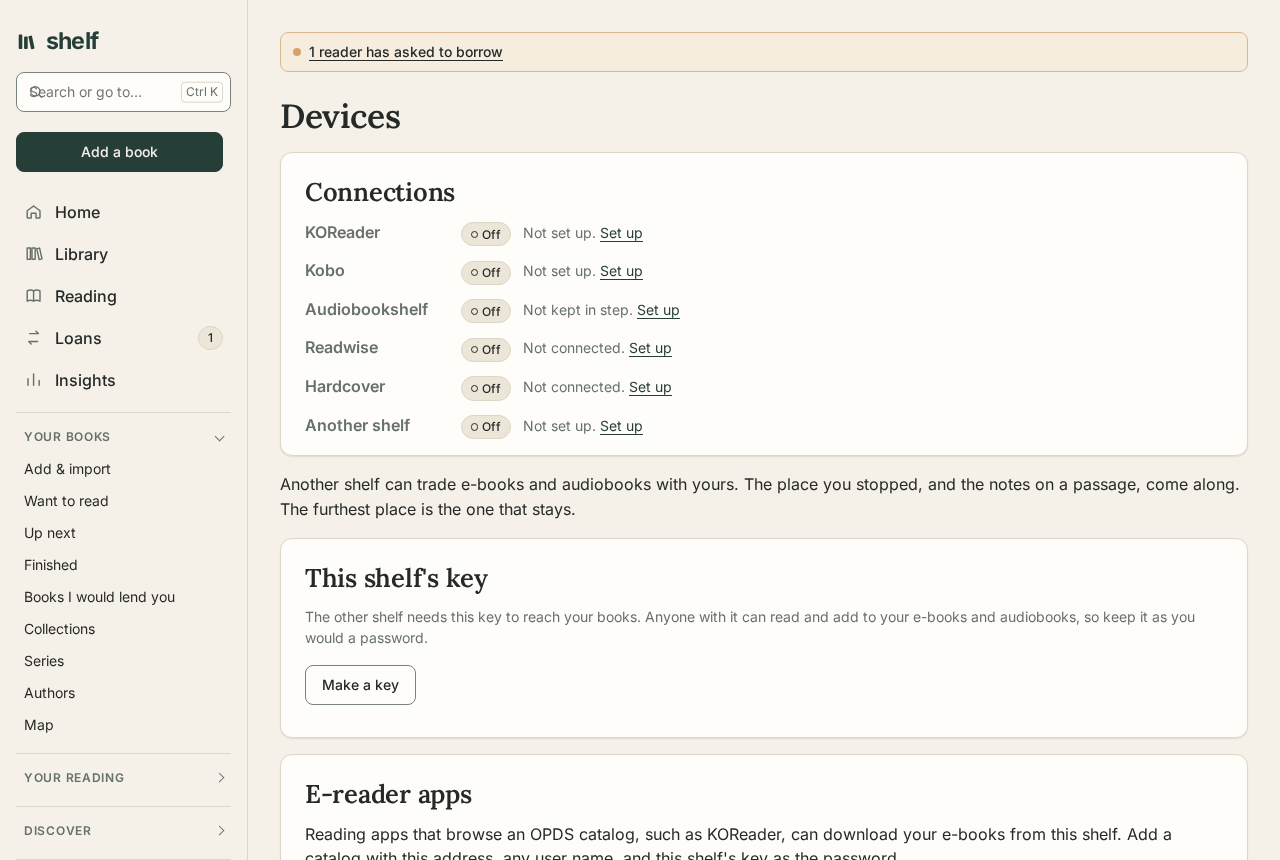
- Off: not set up, with a link to set it up.
- Waiting: set up, and nothing has come from it yet, with what to do next, such as syncing the Kobo.
- Working: when it was last heard from, and from which device.
- Needs a look: the last try went wrong, and why.
A connection that's set up and simply has nothing new says so; it isn't shown as trouble.
The device key
E-reader catalogs and other shelves sign in with a device key, not your password. Make one on Devices; it is shown once, so copy it then. Making a new key stops the old one working. A key reaches only your e-books and audiobooks, never your account.
E-reader apps (OPDS)
Shelf has an OPDS catalog, the format many reading apps browse, such as KOReader, Moon+ Reader, and Thorium. In the app, add a catalog with:
| Setting | What to enter |
|---|---|
| Address | https://<your shelf>/opds |
| User name | anything |
| Password | your device key |
The catalog lists your e-books by status, and the books lent to you, ready to download.
Audiobookshelf's phone apps
Audiobookshelf's own apps, for Android and iPhone, can sign in to Shelf as they would to an Audiobookshelf server. That gives Shelf phone apps: listening with the screen off and from the lock screen, downloads to listen offline, Android Auto and CarPlay, sleep timers, and the apps' own e-book reader.
In the app, add a server with Shelf's address (as Email:PublicAddress gives it, or as you reach Shelf), then sign in with your Shelf name and password. With two-step sign-in on, use an API token from Account as the password instead. Devices shows what to enter.
The app then sees one library, your shelf: every book of yours, or lent to you, with a recording or an EPUB, with its series, authors, narrators, and tags, and your collections. Playing a book streams its tracks from Shelf; where you stop, your bookmarks, and the time you listen come back to Shelf as you go, and books you finish in the app are finished on Shelf. Listening offline in the app catches up when it's back online.
What the apps can't do with Shelf: change books, upload, or anything an Audiobookshelf admin does there; podcasts and playlists stay in Shelf's own pages. The apps are made for Audiobookshelf, and Shelf answers the calls they make as Audiobookshelf 2.37 does; a new version of the apps could ask for something Shelf doesn't answer yet. AbsApi:Enabled set to false turns it off.
Kobo e-readers
A Kobo can take your EPUBs from Shelf as if from its own store, as it does with Calibre-Web: its Sync downloads them over Wi-Fi, with their covers and series, and where you stop on the Kobo comes back to Shelf.
- On Devices, under Kobo, choose which books the Kobo gets: all your EPUBs, or one collection (a "Kobo" collection, say).
- Choose Make a Kobo link, and copy the line it shows,
api_endpoint=https://…/kobo/…. It is shown once. - Connect the Kobo to a computer by its cable. Open
.kobo/Kobo/Kobo eReader.confon it (the.kobofolder may be hidden), find[OneStoreServices], and replace itsapi_endpoint=line with yours. Save, eject the Kobo, and sync it.
Then:
- books you add (to the collection, if you chose one) come with the next sync, and books you take away, or delete, leave the Kobo;
- the Kobo's place moves Shelf's place to the chapter it reached, and finishing a book on the Kobo marks it finished; a book opened on the Kobo moves from want to read to reading;
- archiving a book on the Kobo keeps it on your shelf, and the Kobo isn't sent it again;
- books go as Kobo's own kind of EPUB (KEPUB), made from yours the first time the Kobo asks, so the Kobo shows page numbers and time left in the chapter, and keeps its reading statistics, as for its store's books. A book that can't be turned into one goes as the EPUB. Set
Kobo:Kepubtofalseto send EPUBs as they are.
The Kobo's own store pages still go to Kobo. To stop, choose Stop syncing with the Kobo, and put the old line back: api_endpoint=https://storeapi.kobo.com.
Note
Kobo's protocol is not published; Shelf answers it as Calibre-Web does, and is tested against what Calibre-Web documents a Kobo sending. KEPUBs are made the way kepubify makes them. If your Kobo does something unexpected, please open an issue with its model and firmware.
Send to Kindle
When the shelf has a mail server (see Configuration), each reader can send an e-book to their Kindle by email, the way Amazon's own Send to Kindle works:
- On Account, under Send to Kindle, enter your Kindle's address, such as
name_12@kindle.com. It is in your Amazon account under Devices, or in the Kindle's settings. - At Amazon, add the shelf's sending address (
Email:From, shown on Account) to the Approved Personal Document E-mail List. Amazon quietly drops mail from anyone else. - On a book's page, Send to Kindle emails its file. It arrives on the Kindle within a few minutes.
Amazon takes EPUBs and PDFs by email, up to 50 MB; comics and Kindle-format files are not sent. Only your own books can be sent: a lent book's copy on a Kindle would outlast the loan.
Keeping your place in step with KOReader
KOReader's progress sync sends the page you reach to Shelf, and fetches the one you reached in Shelf's reader:
- On Devices, choose Make a KOReader password. It is shown once.
- In KOReader, open a book, then Tools, Progress sync, Custom sync server, and enter
https://<your shelf>/kosync. - Sign in with your reader name and that password.
A book matches when KOReader has the same file Shelf has, which it does when it came from Shelf's catalog. In an EPUB the place goes both ways to the word: KOReader's place in a chapter becomes the reader's here, and the page you turn to in Shelf's reader opens on the device at the paragraph and word at its top. Reading further on either moves the other forward; going back on the device never pulls Shelf's place back. A chapter Shelf can't read as XHTML, and a PDF, go by the chapter or the page. Stop syncing with KOReader turns the password off.
Note
KOReader sends its password as a hash. Shelf keeps only a hash of that, separate from your sign-in password, so the KOReader password can't sign in to Shelf itself.
Highlights from KOReader
Progress sync carries your place, not your highlights. To bring highlights made in KOReader:
- In KOReader, open the menu, then Tools, Export highlights. Choose JSON as the format, then export the current book, or all books.
- Copy the
.jsonfile it writes to your computer or phone (KOReader can also share it). - On Devices, under Bring highlights from KOReader, choose the file.
Each book is matched by its title, or else by its file name, among the books on your shelf (or lent to you) that have an e-book. Each highlight goes to its chapter, or for a PDF its page, with its note and the time you made it. KOReader's position picks the chapter, and Shelf checks the words are there, so a highlight still lands right in a different edition. Highlights already on Shelf are not added twice, so exporting everything again later is fine.
Reading time from KOReader
KOReader's statistics count the time you spend on each page. To have it count on Shelf too, in Insights, your year in review, and your hours goal:
- Connect the e-reader to a computer, and copy
statistics.sqlite3from KOReader's settings folder (koreader/settings; on a Kobo,.adds/koreader/settings; on Android,koreader/settingsin the device's storage). - On Devices, under Bring reading time from KOReader, choose the file.
Each book is matched by KOReader's fingerprint of the file, which is the same when it came from Shelf, or else by its title and author, among your books and the books lent to you. The time goes to each day it was read, in UTC as Shelf counts days, beside any time you read the same book in Shelf's own reader. Bringing the file again replaces what it brought before, so bring it as often as you like.
Highlights from a Kindle
A Kindle keeps every highlight and note you make in one file, My Clippings.txt, in its documents folder. Connect the Kindle to a computer by its cable, then on Devices, under Bring highlights from a Kindle, choose that file.
Each clipping's book is found on your shelf by title and author (a Kindle writes "Le Guin, Ursula K."; Shelf knows that is Ursula K. Le Guin, and leaves off a subtitle or series the Kindle adds to the title). On a book with an EPUB, a highlight goes to the chapter that has its words, with the note you made at the same place, and shows in the reader. On any other book, a paper copy say, it becomes a quote, with its page when the Kindle gave one. Bookmarks are left out, and a clipping already on your shelf is not added twice, so you can bring the same file again later. The file can be in any of the Kindle's languages.
Readwise
Readwise gathers highlights from everywhere you read. On Account, under Readwise, paste your access token from readwise.io/access_token and choose Connect; Shelf checks it with Readwise and keeps it sealed with the shelf's own keys. Then:
- Send everything now sends all your highlights and quotes, each with its book, author, note, and place (the chapter of an EPUB highlight, the page of a quote);
- Send new highlights and quotes every hour sends those made since, on its own.
Readwise keeps one copy of each highlight however often it is sent. Highlights you make on a book lent to you are yours and go too.
It works the other way as well. Bring highlights now, or Bring highlights made elsewhere every hour, brings the highlights Readwise has from your Kindle, Kobo, Apple Books, Moon+ Reader, and the rest onto the books on your shelf they're from, matched by title and author. Like a Kindle's clippings, each lands in an EPUB's chapter when its words are found there, with its note, or else becomes a quote with its page. Nothing comes twice, Shelf's own highlights don't come back, and articles, tweets, and podcasts stay in Readwise. Books you don't have on Shelf are listed, not added. Disconnect forgets the token.
Hardcover
Hardcover is a place to track and share your reading. On Account, under Hardcover, paste your API token from hardcover.app/account/api and choose Connect. Then Send changes now sends each book's status (want to read, reading, read, or did not finish), your stars, and the dates you started and finished it; Bring changes from Hardcover brings back what you changed there; and Keep in step every hour does both, on its own.
- A book is found on Hardcover by its ISBN, or else by its title and author. One Hardcover doesn't have is noted and not looked for again until it changes.
- Only books whose status, stars, or dates changed since they last went are sent, forty at a time, as Hardcover asks to be called gently. Reading dates go as a new read only when they change, so Hardcover doesn't count a read twice.
- Changes made on Hardcover come back to books that haven't changed on Shelf since they were last sent. When a book changed in both places, Shelf's goes to Hardcover. A book on both that was never sent takes only what it lacks from Hardcover (stars, dates, or a status further along).
- Add books that are only on Hardcover adds those too, with their status, stars, dates, and ISBN. Hardcover's half-stars are rounded to whole ones.
- Once connected, Look up and Fill empty details ask Hardcover too, after Open Library and Google Books, for what they left blank: above all a book's series and its number in it, which Hardcover knows for most books and the others seldom do. An admin can set
Hardcover:LookupTokenso every reader's look-ups ask it.
Hardcover's API is young and still changing; if a send stops working after a change on their side, it will need a newer Shelf. Disconnect forgets the token.
Trading with another shelf
Two shelves, yours at home and one at a friend's, or yours on two servers, can trade e-books and audiobooks:
- Each side makes a device key on Devices.
- Each enters the other shelf's address and the key it made for them, under Another shelf.
- Sync now brings across the files the other shelf has and you don't, and sends yours the other way.
Books are matched by title and author or ISBN. The furthest place in each book is kept on both sides, and notes on passages come along with the e-book.
Take care
The key travels with every request, so use an https:// address for a shelf outside your own network.
On a phone
Every page works on a small screen, with a bottom bar for the library, reading, adding, loans, and stats. Add Shelf to the home screen from the browser's menu and it opens like an app. Books you keep for reading offline open even with no connection; see Reading offline.
Sharing a book into Shelf
Once Shelf is on an Android phone's home screen, it appears in the phone's Share menu. Share a book from a bookshop, Goodreads, Open Library, or anywhere else, and Shelf opens the Add a book form: with the ISBN when the page or its link has one, looked up straight away, or else with the title (and the author, when the page names one), ready to look up. Opening /?add=1&isbn=… or /?add=1&title=…&author=… does the same from a bookmark or a script. (iPhones don't let web apps into the Share menu yet.)