Running Shelf
Accounts and security
Signing in
Every page and every API call needs a signed-in reader, apart from a reading list you share by link. Scripts sign in with an API token, which opens the books API but never the account. A sign-in lasts thirty days on that browser, and each one is listed on Account under Signed-in devices, with its browser and when it was last used. Sign out any of them from there, or Sign out everywhere else.
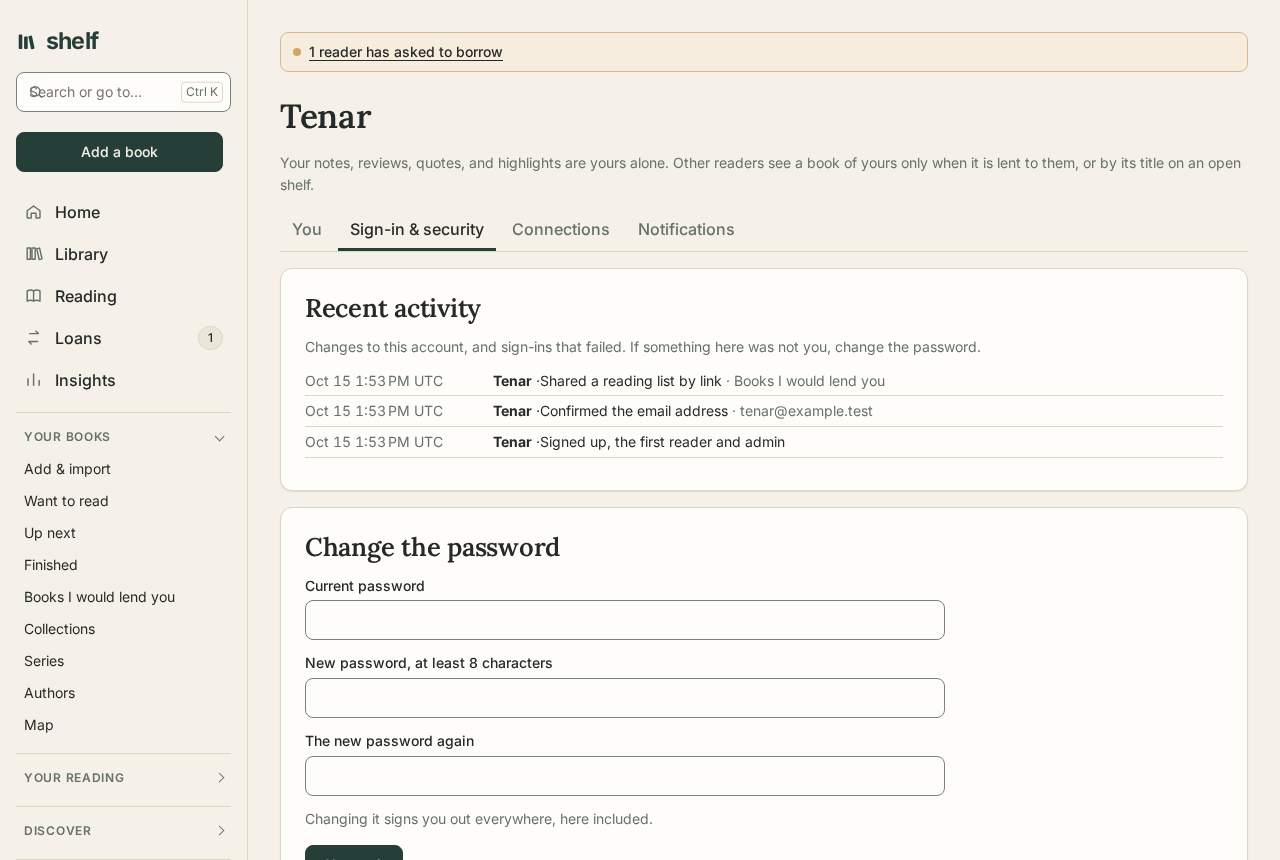
Changing your password signs you out everywhere. Sign-in and sign-up allow ten attempts a minute from one address (Accounts:SignInsPerMinute).
Passkeys
A passkey signs you in with your device's fingerprint, face, or PIN, or a password manager, with no password to type and no code to copy. It counts as both steps of two-step sign-in.
- On Account, under Passkeys, name it (My phone, say) and choose Add a passkey. Your device asks you to confirm.
- Next time, choose Sign in with a passkey on the sign-in page.
Each passkey is listed with when it was added and last used, and Remove takes one away. Shelf keeps only the public half of each key.
Note
Browsers make passkeys only for an https:// address, or localhost. Behind a reverse proxy that hides the address readers use, set Passkeys:Origin to it, such as https://shelf.example.org.
Single sign-on
If you already sign in to your self-hosted apps through an OpenID Connect provider, such as Authentik, Authelia, Keycloak, Pocket ID, or Zitadel, Shelf can use it too. The sign-in page then has a Sign in with… button.
- At the provider, make an application (an OAuth2/OpenID client) for Shelf. Its redirect address is your Shelf's address followed by
/signin-oidc, such ashttps://shelf.example.org/signin-oidc, and it needs theopenid,profile, andemailscopes. - Give Shelf its details:
Oidc:Authority(the provider's issuer address, the part before/.well-known/openid-configuration),Oidc:ClientId, andOidc:ClientSecret, andOidc:Namefor the button, such asAuthentik. See Configuration.
How readers are matched:
- A reader already here signs in with their password once, then chooses Connect under Single sign-on on Account. From then on, either way works.
- Someone new gets an account of their own the first time they sign in through the provider, as long as the shelf is taking new accounts (
Accounts:AllowSignUp, orOidc:CreateAccountsto allow it through the provider only). They are named as the provider calls them, and their email address comes along, to sign in and be notified with, when the provider says it is verified and no reader here has it already. Such an account has no password; Set a password on Account adds one. - Readers are matched by the provider's own unchanging id for each person, never by email address, so nobody can take over an account by claiming someone else's address at the provider.
- Signing in through the provider skips Shelf's own two-step sign-in: the provider's own second step, if you turn it on there, takes its place.
- Disconnect on Account removes the connection, once the account has a password to fall back on.
The provider sends readers back with an ordinary link rather than a posted form, so this works over plain http:// on a home network as well as over https://.
Two-step sign-in
Two-step sign-in asks for a code from an authenticator app after your password.
- On Account, choose Set up two-step sign-in, and scan the code with an authenticator app, or type its key in.
- Enter the six-digit code it shows, and choose Turn on.
- Keep the ten recovery codes somewhere safe. Each works once, in place of a code, if you lose the authenticator.
The secret is sealed with the shelf's keys, so a copy of the database alone can't use it. To turn it off, enter a current code.
Emails about your account
Whatever you choose to hear about, Shelf emails you when something changes how you sign in, as it may not have been you:
- your email address changes (to the address you had, with the new one named);
- your password is changed or reset, by you or by an admin;
- two-step sign-in is turned off;
- a passkey is added;
- you sign in from a device you haven't used with this shelf before.
Each says what to do if it wasn't you. These need email set up, and never go to webhooks.
The activity log
Shelf keeps a record of:
- sign-ups, failed sign-ins for accounts that exist, and changes of email address;
- password changes and resets;
- admin rights given or taken, and removed accounts;
- two-step sign-in turned on or off, and passkeys added or removed;
- devices signed out from the list;
- device keys and KOReader passwords made;
- restores, snapshots, and backups taken by hand, and imports from Audiobookshelf.
Every reader sees the lines about their own account under Recent activity on Account; if something there wasn't you, change your password. An admin reads the whole log on Shelf admin, under Activity, or as JSON at /admin/audit. The newest 5,000 entries are kept.
Admins
The first account is an admin. Shelf admin, under Admin in the menu, is in four tabs: Readers, Backups, System, and Activity.
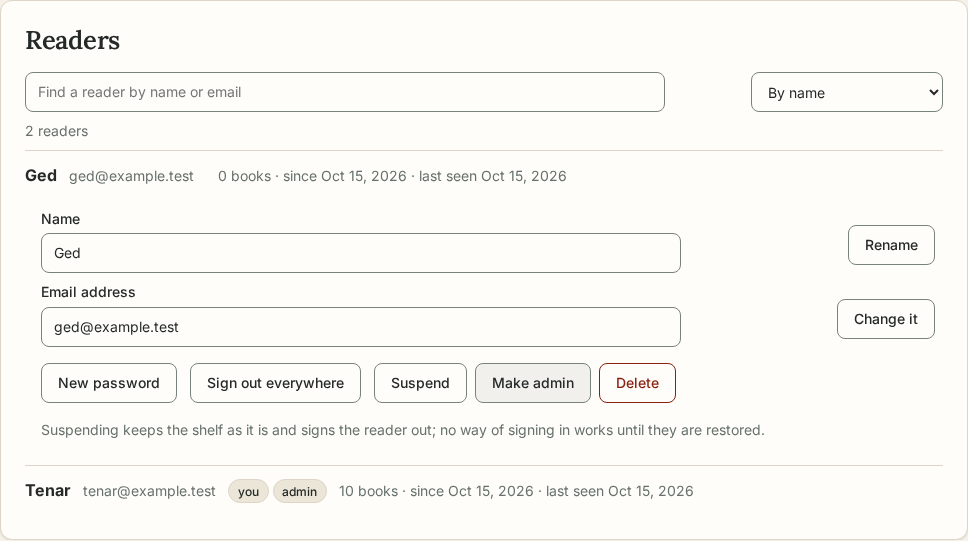
Under Readers, a list of every reader, found by name or address and put in order by name, newest, or last seen, shows each one's address and whether it is confirmed, whether they are an admin, a child, suspended, or use two-step sign-in, their books, and when they were last signed in. Open a reader for what can be done:
- Rename them, or change their email address (a confirmation link can be sent again from there).
- Sign out everywhere, which keeps their password.
- Suspend them: no way of signing in works (password, passkey, single sign-on, API tokens, device keys, KOReader, Kobo, Audiobookshelf apps, the calendar), and their shelf is kept as it is, until they are restored.
- A new password for a reader who forgot theirs. It signs them out everywhere, turns off their two-step sign-in, and removes their passkeys: the way back in after a lost phone, and a way to shut out anyone who added a passkey of their own.
- Make admin for another reader, or take it away. The shelf always keeps at least one admin.
- Delete a reader, with their books and files. Books lent to them go back to their owners.
Readers can delete their own account from Account, with their password.
Who sees what, under Settings, shows an admin what one reader can see of the shelf, and why, by the same rules the pages keep: their own books, the open shelves of others (titles, authors, and covers only), books lent to them, their clubs, collections their guardian shares, their API tokens and what each is kept to, and what anyone with one of their links can see. Why can they see this book? gives the reasons for one book, or says they can't. Look at it before sharing anything.
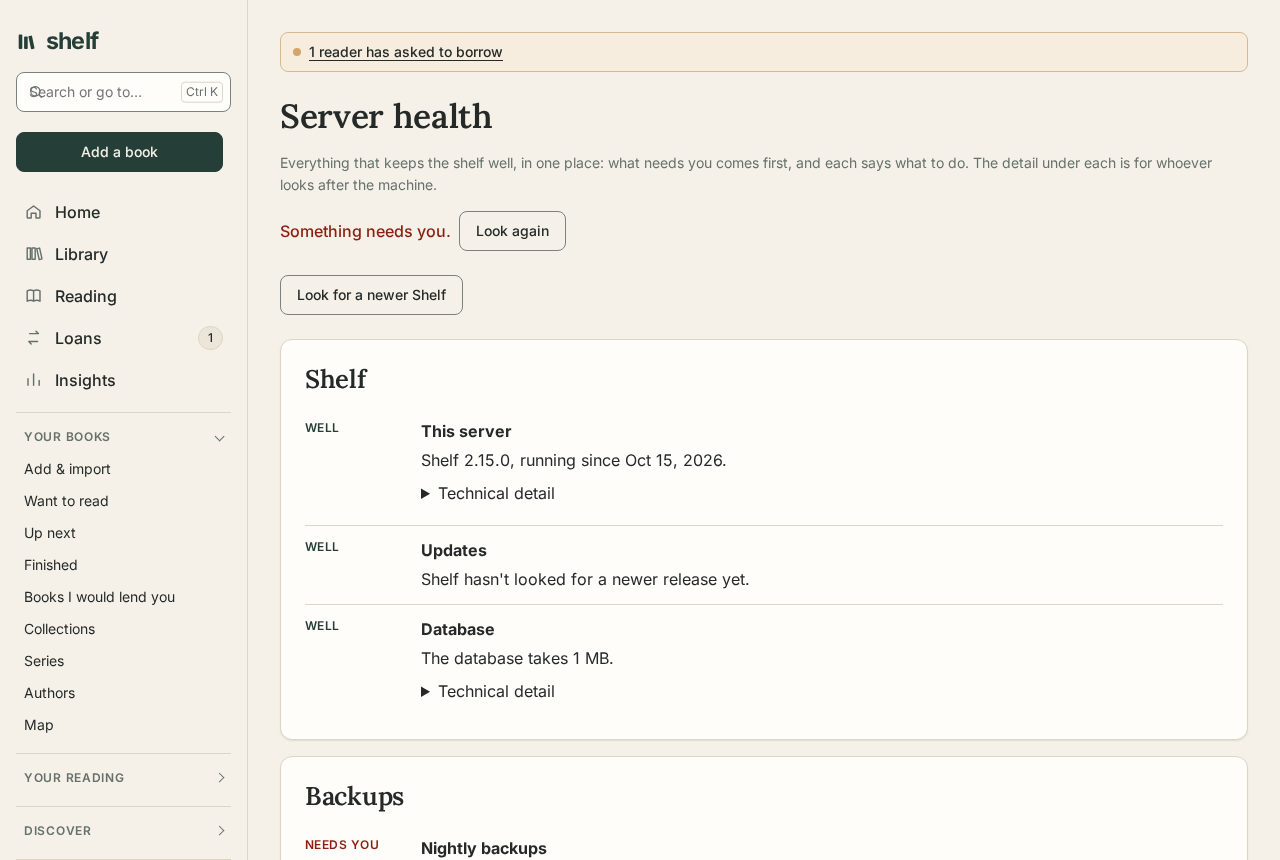
Server health, beside it, gathers what keeps the shelf well: the newest backup and whether it was proved, copies sent elsewhere, the stored files, disk space, imports, webhooks, linked shelves, email, OCR, a newer release, and when each background job last ran. What needs you comes first, each with what to do, and the technical detail under it.
When the only admin is locked out
Reset a password, or make someone an admin, from the command line. Each prints what it did and exits:
# In Docker
docker exec shelf dotnet Shelf.Api.dll --reset-password "them@example.org"
docker exec shelf dotnet Shelf.Api.dll --make-admin "them@example.org"

# From source
dotnet run --project src/Shelf.Api -- --reset-password "them@example.org"
Each takes the email address the reader signs in with, or the name of a reader without one.
Storage
Admin, Storage, measures the space each reader's files take on the disk: e-books, audiobooks, covers, and podcast episodes, and what the shelf keeps for itself (Kobo copies, uploads waiting on a choice), with the disk's free space. An admin can give any reader a limit in megabytes. A file that would take a reader past it is refused, with a note saying why (uploads, imports, and podcast downloads alike); what they have already stays, to read and listen to.
Linked shelves
A shelf linked to another (see Linked shelves) answers that shelf's calls under /federation, each carrying the secret this shelf gave it, of which it keeps only a hash. Those calls see open shelves' titles, take asks to borrow, and fetch the files of books lent to that shelf's readers, while they are lent; nothing else. The one-time link code is good for a day. Unlinking stops the calls at once.
Turnstile
With a Cloudflare Turnstile widget's keys set, signing in, signing up, and asking for a password reset each need a token from Turnstile, checked with Cloudflare by the server: made for that form, on the shelf's own address, and used once. The sign-in limit still counts each attempt.
Who may sign up
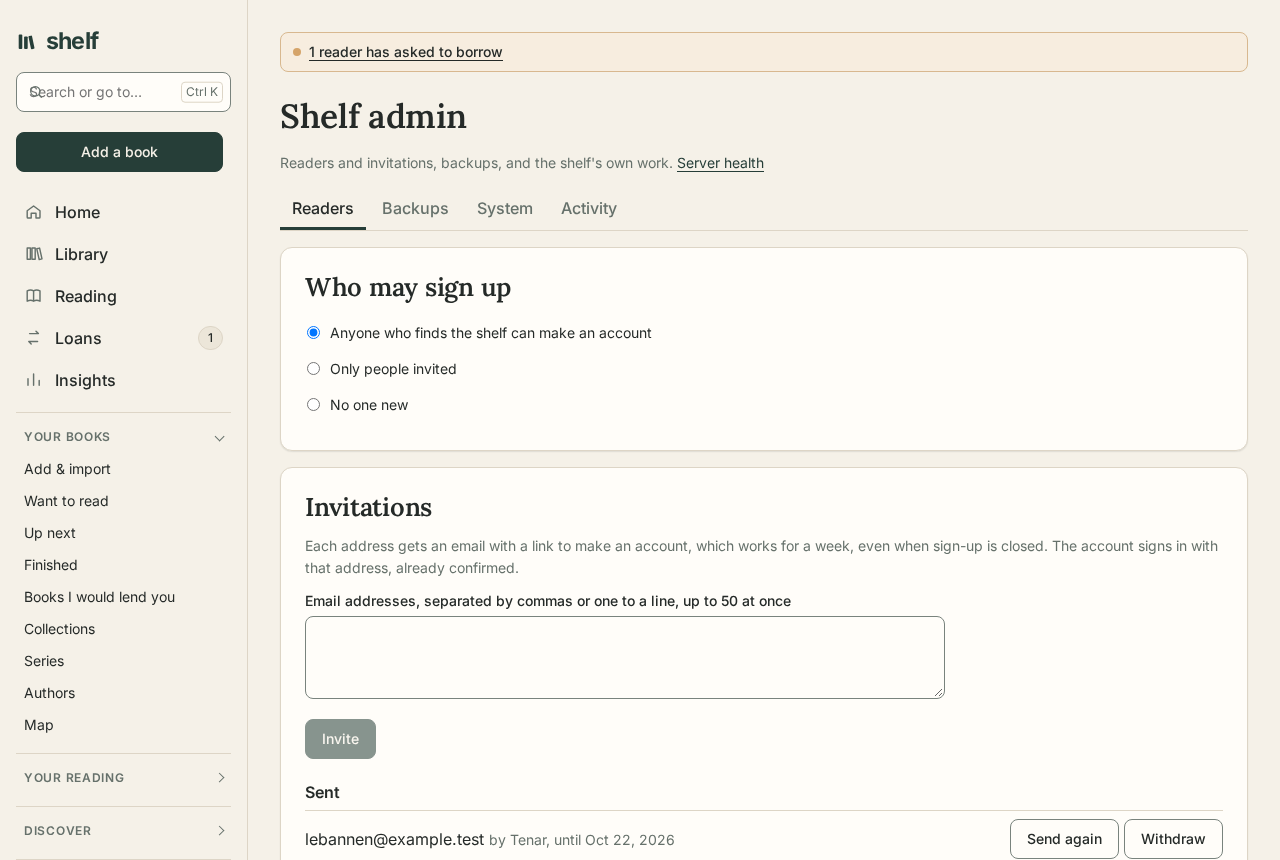
Sign-up is open until you change it, so anyone who can reach the shelf can make an account. On Shelf admin, under Who may sign up, choose Anyone who finds the shelf, Only people invited, or No one new. Until you choose, Accounts:AllowSignUp decides (false for no one new). The first account can always be made, so make yours before the shelf can be reached from outside.
Invitations
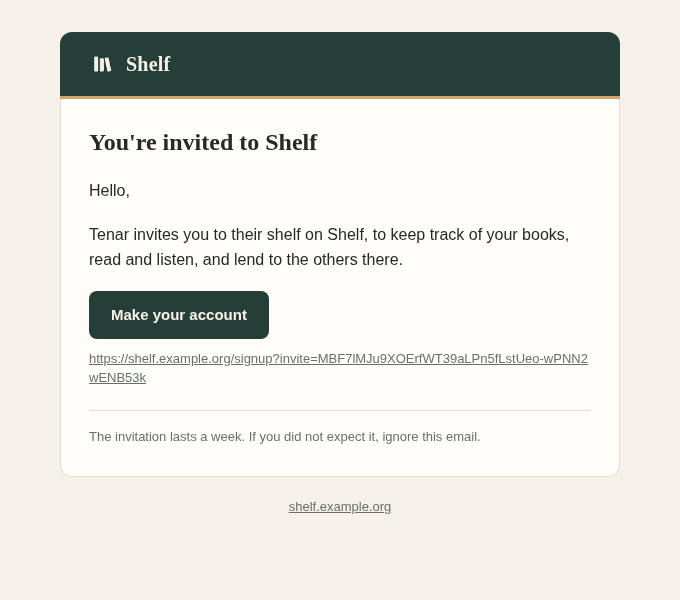
Under Invitations, give email addresses, up to fifty at once, and each gets an email with a link to make an account. The link works for a week, once, even when sign-up is closed, and the account it makes signs in with that address, confirmed already. An address someone already signs in with is passed over. Without a mail server, each link is shown to pass on yourself. Sent invitations are listed, to Send again with a new link or Withdraw.
The shelf's own work
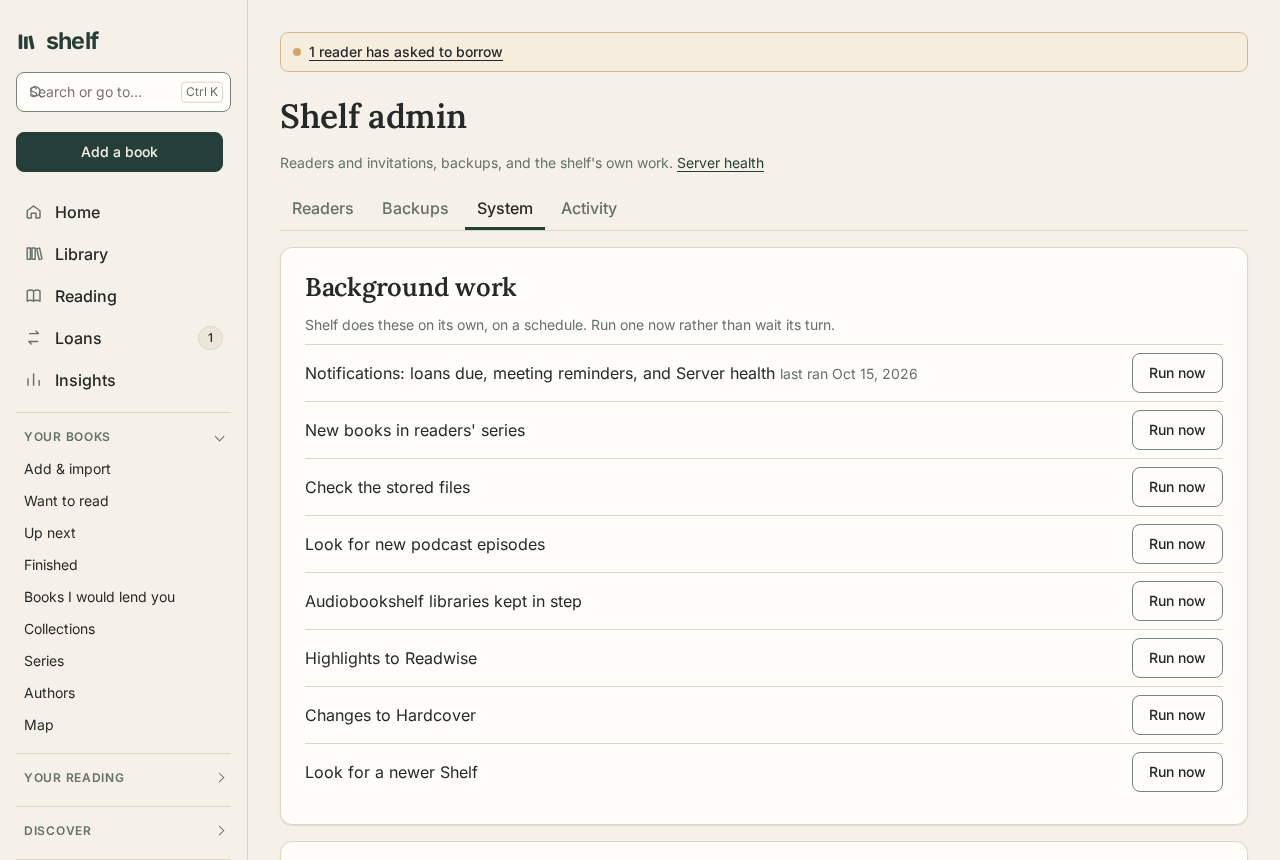
Under System on Shelf admin:
- Background work: what the shelf does on its own (notifications, series, the file check, podcasts, the Audiobookshelf, Readwise, and Hardcover syncs, and looking for a newer Shelf), when each last ran, and Run now.
- Email: which server it goes through, the last email that would not go, and Send me a test email.
- Announcement: a note at the top of every page for every reader, until you take it down, and by email to every reader too if you like. Each reader can hide it for themselves.
- The import folder, storage and limits, and linked shelves.
Addresses readers give
A podcast's feed and the episodes it lists, and an Audiobookshelf to import from, are fetched by the server at addresses a reader types. So the shelf can't be used to reach inside the network it runs in, those must be on the internet: the server refuses to connect to itself, the local network, or a cloud's metadata service, checking the address a name resolves to at the moment of connecting, redirects included. An admin's Audiobookshelf may be on the local network, as may notices (ntfy, Gotify) and webhooks. Set Network:AllowPrivateAddresses to let readers' addresses reach the local network too.
Headers
Every answer tells the browser not to guess a file's type from its contents, and not to show Shelf's pages inside another site's frame (so a click can't be steered there); the public page and its widget are the exceptions, being made for other sites. Pages don't pass their address to the sites covers come from. A book's chapters and pictures come with a policy that refuses scripts, as described under Reading.
Password resets
The link in a reset email goes to Email:PublicAddress. Without it, no reset email is sent: a request can claim to come from any site, and the email would carry a working link there. Behind a reverse proxy, set Hosting:KnownProxies to the proxy's address, so the sign-in limit counts each visitor's own address even if Shelf's port can be reached directly.