Using Shelf
Reading
Any book with an e-book opens in the reader from its page or its card in the library. The reader keeps your place for you, whatever device you open it on next.
EPUBs
An EPUB opens in a page-turning reader built on epub.js, the engine Audiobookshelf's reader uses, and like Audiobookshelf's it fills the browser window: the book is all there is, with the bars over it. The whole book is one view: turn a page by tapping the right or left of it, swiping, pressing the arrow keys, Page Up and Page Down, or the space bar; the last page of a chapter turns into the next one.
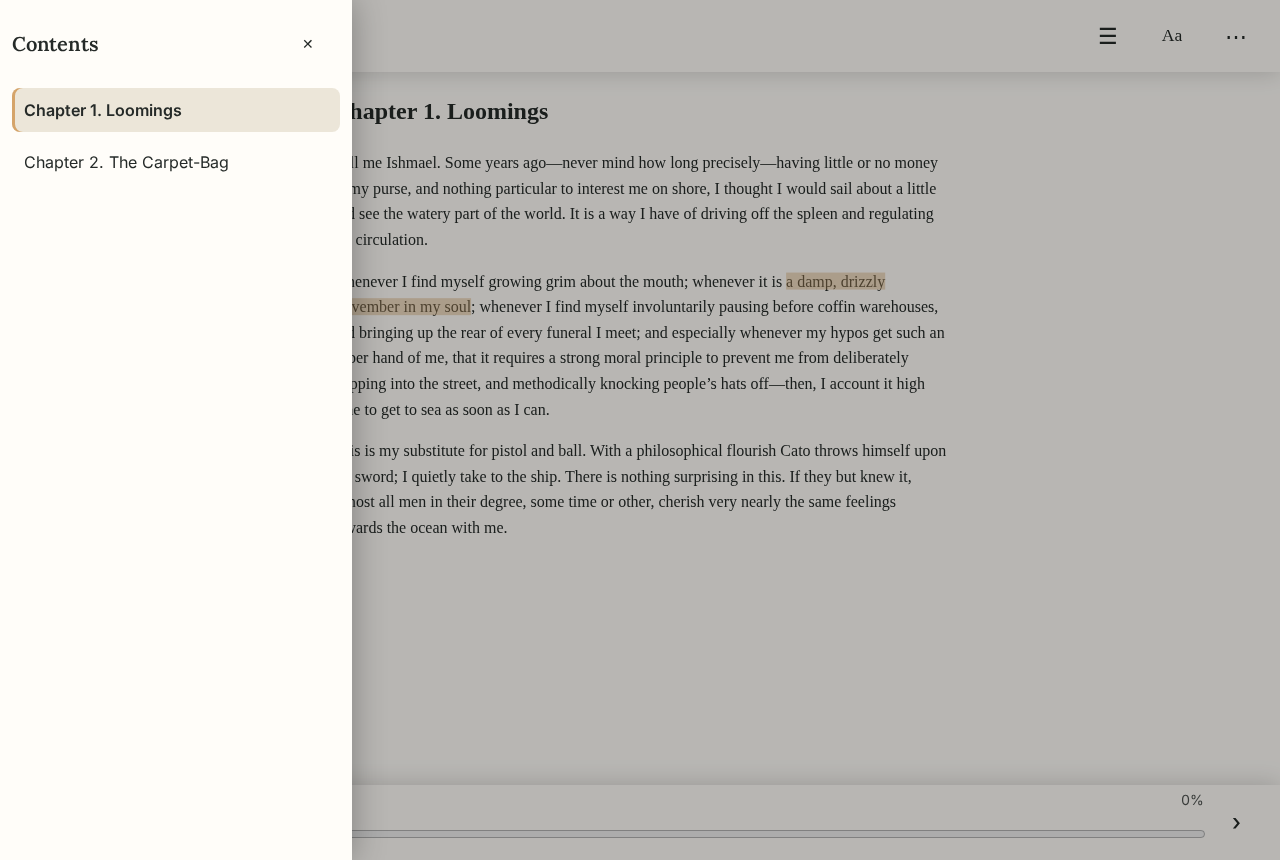
A tap in the middle of the page shows the bars, and another hides them, as does turning the page by tapping or swiping:
- at the top, ‹ back to the book's page (or to Loans, for a book lent to you), the book's title, ☰ for the contents, Aa for the text settings, and ⋯ for the rest;
- at the bottom, ‹ and › to turn the page, and where you are: the chapter's name, the page of it, and how far through the whole book (counted once on each device, then kept there), with a slider to go anywhere in it.
☰ lists the chapters by the names the book's own table of contents gives them (or each chapter's heading, in a book without one), with the one you're reading marked; a tap opens one. Esc, a tap on the dimmed page beside it, or ✕ closes it, and the same goes for the text settings and the panel.
⋯ opens a panel (down the side, or from the bottom on a phone) with Continue in the audiobook, Listen along, Read aloud, the recap, this chapter's highlights, and Full screen. Selecting a passage brings up a sheet over the foot of the page to highlight it, keep a note, or look a word up.
Full screen
Full screen, in the panel, or the F key, takes the browser's own full screen too, without the address bar, where the browser allows (most, though not an iPhone's Safari). Esc or F again leaves it.
Your place is kept to the word, as an EPUB CFI, every time you turn a page, so the book opens where you stopped on any device, whatever its screen or your text size. Audiobookshelf's phone apps keep their e-book place the same way, and the two share it. KOReader trades its place with Shelf to the word too. A Kobo, which keeps a chapter only, moves you to the start of the chapter it was in when it's further on.
Aa opens the text settings, each a tap (from the bottom on a phone, within a thumb's reach), applied to the page as you choose them:
- Page: light, sepia, or dark, or as the device is set, as swatches;
- Text size, a step at a time with A− and A+, from 85% to 200%;
- Typeface: the book's own, a serif, or a sans serif;
- Line spacing: snug, comfortable, or airy;
- Reading width: narrow, medium, or wide;
- Layout: Pages (where a new reader starts) or Scroll, the book as one long page.
Your settings are kept for you, so every book opens the same way. A book's own styles are kept where they don't fight these. Nothing in a book can run: before a chapter is shown, its scripts, event handlers, javascript: links, forms, and embedded frames are taken out, and it carries a policy that refuses any script the cleaning might miss, so an EPUB can never act on your shelf.
Classic reader, at the foot of the panel, opens the chapter-at-a-time reader from before. Listen along, which marks each word as the audiobook reads it, uses it, and the page-turning reader comes back when you stop.
PDFs
A PDF keeps its own layout, page by page. Text size zooms from fitting the width; the arrow keys and Page Up and Page Down turn pages. Open the file itself hands it to your browser's own viewer.
Scanned PDFs
A scanned PDF's pages are pictures. When Tesseract and Poppler are installed on the server (the Docker image has them), Shelf reads each page's words in the background after the PDF is uploaded, so they can be selected, highlighted, and searched like any other text. A page says whether its words are its own, read by Shelf, still being read, or not readable. See Running on a server for languages.
Comics
A comic book archive reads a page at a time, in natural name order (page 2 before page 10), as large as the window allows. The arrow keys turn pages, and the next page loads ahead. CBZ files are kept as they are; CBR (RAR), CB7 (7-Zip), and CBT (tar) files are repacked as CBZ when they're added, so every device and app that takes comics can open them.
- Right to left, as manga turns the pages the other way: the left arrow goes forward, and the buttons and spreads are mirrored. It's on by itself for a comic whose
ComicInfo.xmlsays it's manga, and kept for each book. - Two pages at a time shows the cover alone, then pages side by side as a printed book lies open. It's kept for all your comics.
- Match on ComicVine, on a comic's page, finds the issue at ComicVine and takes its series and number, writers, publisher, year, and cover. It needs a free API key from ComicVine, which an admin sets as
Comics:ComicVineKey.
Kindle files
A .mobi, .azw3, or .azw is turned into an EPUB as it comes in, when Calibre's ebook-convert is installed on the server. After that it is an ordinary EPUB. Files locked with DRM cannot be converted.
Highlights and notes
Select a passage in an EPUB or a PDF, scanned pages included, and the passage appears beside the page with a box for a note. Highlight keeps it. Highlights are marked in the text; select one to change its note or remove it. Each chapter's or page's highlights are listed beneath it, and every highlight also appears on the book's page and under Quotes & highlights.
A highlight remembers the words around it, so it finds its place again even when the same words appear twice on a page.
Exporting highlights and notes
Every book's quotes, highlights (under their chapter titles or pages), notes, and review download as Markdown, ready for Obsidian, Notion, or any folder of notes:
- one book, from the link under its highlights;
- every book with something written about it, as a zip, from Quotes & highlights or Backup & restore.
Each file starts with YAML front matter: title, author, ISBN, year, rating, status, and finish date.
Looking up a word
Select a word, or a phrase of up to four words, in an EPUB or a PDF and choose Look up. Its definitions come from Wiktionary in the book's language (taken from its details, English when it has none), and what Wikipedia says of it below, each with a link to read more. Only the words you chose are sent, to Wikimedia; an admin can turn look-ups off with Lookup:Dictionary.
Read aloud
In an EPUB or a PDF, Read aloud speaks the chapter or page with your browser's own voices, a sentence or two at a time, and goes on into the next chapter or page by itself. Pause, resume, or stop at any point; turning a page by hand stops it too. Choose a speed and a voice; both are kept in that browser.
Note
Nothing is sent to the server or anywhere else to read aloud. How it sounds depends on the voices your device has; phones and Macs usually have good ones.
Previously in this book
Coming back to a book after a while, open Previously in this book above the reader for a short recap: who is who, what has happened, and where you stopped. It covers the book up to your place and nothing after it: each chapter before yours is summed up from its own text, and the recap is written from those summaries and the last passage you read, so there's nothing later in the book it could give away. In the player, an audiobook with a transcript gets one too, up to the player's place.
Recaps are written by a language model: Anthropic's Claude, with a key an admin sets (Recap:ApiKey). The text of the chapters you've read goes to Anthropic to be summed up. The chapter summaries are kept, so a book's chapters are each sent once, and coming back again costs one short request. A recap can get things wrong, as the panel says. Without a key, the panel isn't shown.
Search inside books
Search inside books finds a phrase in the words of your e-books and of books lent to you, scanned PDFs included once they have been read, and in everything you wrote yourself: notes and reviews, quotes, highlights, the reading log, the journal, and the reference desk, under In your own words. Look in keeps it to the books, to your own words, or to one kind of them; Books and By keep it to books of a status or an author. Results come best match first, shown in context, and Open here takes you to that chapter or page. Case and accents don't matter (cafe finds café), and the last word can be partial.
It finds words said in audiobooks too, for those with a transcript (see Read-along): each hit says when it's heard, and Open here starts the player at that moment.
Reading offline
On a book with an e-book, Keep for reading offline saves the file in that browser. When the shelf can't be reached, any page opens the offline reader instead, which lists your kept books and reads them: EPUBs chapter by chapter, PDFs page by page, at your text size.
Offline, you can still:
- keep your place, which is sent back the next time the shelf answers; the shelf keeps whichever place is further;
- see your highlights, which come along when you keep a book;
- highlight passages and remove highlights, kept on the device and sent to the shelf when it answers.
A book's page says when it's kept on that device. Whenever the device loses the shelf, a line across the top of the page says so, with a link to Offline reading, rather than pages simply failing to load.
A scanned PDF's OCR words are not kept offline, and comics aren't offered for offline reading. Audiobooks can be kept too; see Listening offline.
Tip
On a phone, add Shelf to the home screen from the browser's menu. It opens like an app, and the offline reader works from there too.
Time spent reading
The reader counts the time you spend with a book open, while the page is in view and you have scrolled, turned a page, or touched it in the last two minutes, so a book left open on the table does not count. Stats shows it under Reading time, beside the time spent listening to audiobooks: today, this week, this year, each of the last two weeks, and the books you gave most time this year. A day of reading time keeps your reading streak going.
Where you stopped
On a book with both an e-book and a recording, its page shows where you are in each and when you last read or listened, and the button for the one you used last leads, with the other beside it. Each keeps its own place: reading doesn't move the recording on, nor listening the e-book. Listen along, in the reader, plays the two together.
Your place is your own. A borrower has a place of their own in a book lent to them, separate from the owner's. KOReader and another shelf can move your place forward too; see Devices and apps.
A place moves only forward by itself, so a device that is behind never sends you back. When two disagree, Where each device has you, on the book's page, lists where each said you were and when: Shelf's reader and player, reading offline, KOReader (by its device name), and the Audiobookshelf apps. Go here takes the one that's right, back or forward, and the choices made are kept beneath.