Using Shelf
Audiobooks
A book with an audiobook gets Listen on its page, and plays in the browser on any device.
Adding an audiobook
On a book's page, under Files, upload one audio file or a zip of tracks, up to 1 GB (or the limit set in Uploads:MaxAudioMegabytes): mp3, m4a, m4b, aac, ogg, opus, wav, or flac. A zip's tracks play in name order. You can also make audiobooks from files in bulk, or bring them from Audiobookshelf or LibriVox; see Bringing books in.
If the files carry cover art (an .m4b's cover, or an MP3's front-cover picture) and the book has no cover yet, the art becomes its cover.
Editing the chapters
Under the list of chapters in the player, Edit the chapters lets you name each one and say where it starts (as 1:02:03, 62:03, or seconds), remove some, or Add a chapter here at the player's place. Saved chapters replace the file's own, or Audible's, across one file or many tracks. Use the file's own chapters goes back. The API takes them too: PUT /books/{id}/audio/chapters with a list of { "title", "start" }.
One M4B from many tracks
A recording in many tracks can be joined into one M4B, with the player's chapters (Audible's, your own, or one a track), the book's title, author, and narrator, and its cover. On the book's page, choose Make one M4B; Shelf makes it in the background with ffmpeg. Then Download the M4B for another player, or Use it in place of the tracks to keep it as the book's recording, with your place kept. It needs ffmpeg on the server (--build-arg FFMPEG=true for the Docker image); Audio:M4bBitrate sets its quality (64k by default, plenty for speech).
Matching it on Audible
Under the recording, Match on Audible searches Audible's catalogue by the book's title and author, or by an ASIN (the ten letters and digits in the book's address at Audible). Choose the Audible store whose edition you have; each country sells its own. For the match you choose, Shelf can take:
- The details: the narrator, the series and the book's number in it, the publisher, the year, and the language. The title and author stay as you have them.
- Chapter names, from Audnexus, which the player then shows instead of the file's own marks or track names. They're placed across the tracks by time, so they work for one long file or for many. If they run past the end of your recording (another edition, or an abridged one), the player keeps the file's chapters. Use the file's own chapters goes back to those.
- The cover, at Audible's size.
Matching asks Audible and Audnexus over the internet; nothing is sent about you but the title and author you search for.
The player
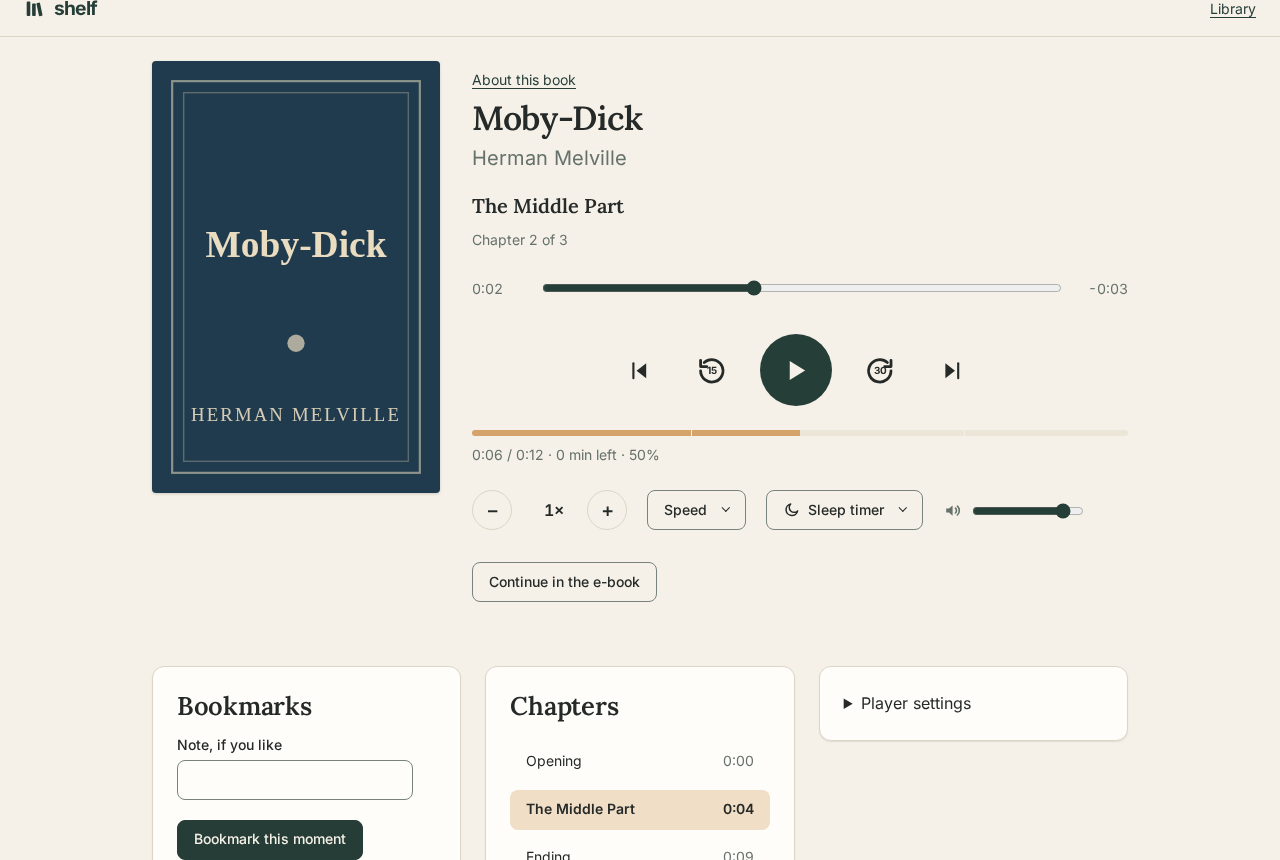
- One recording. A book in many tracks plays as one, straight from one track into the next, with one timeline for the whole book. Shelf reads each track's length from the file (MP3, M4B and M4A, Ogg and Opus, FLAC, WAV), and the browser fills in any it cannot.
- Back where you stopped. Playback resumes from your place, on any device; the place is kept every few seconds as you listen, and when you pause or leave.
- Chapters. The chapter you're in, its time gone and left, and a slider to move within it. Below, a bar for the whole book with a mark at each chapter, its time left at your speed, and how far through you are. The Chapters list (or Tracks, for a recording without chapter marks) shows each one's start and goes to it. Previous chapter goes back to the start of the chapter first, then to the one before.
- Skips. Back 15 and ahead 30 seconds, or any of 5 to 60 seconds, under Player settings.
- Speed. From 0.5× to 3× in steps of 0.05 with − and +, or a common speed from Speed. Kept for you.
- Sleep timer. Pause after 5 to 90 minutes of listening, or at the end of the chapter, with 5 more minutes when you are not sleepy yet. The minutes count only while the book plays, and the sound fades out over the last half minute rather than stopping all at once.
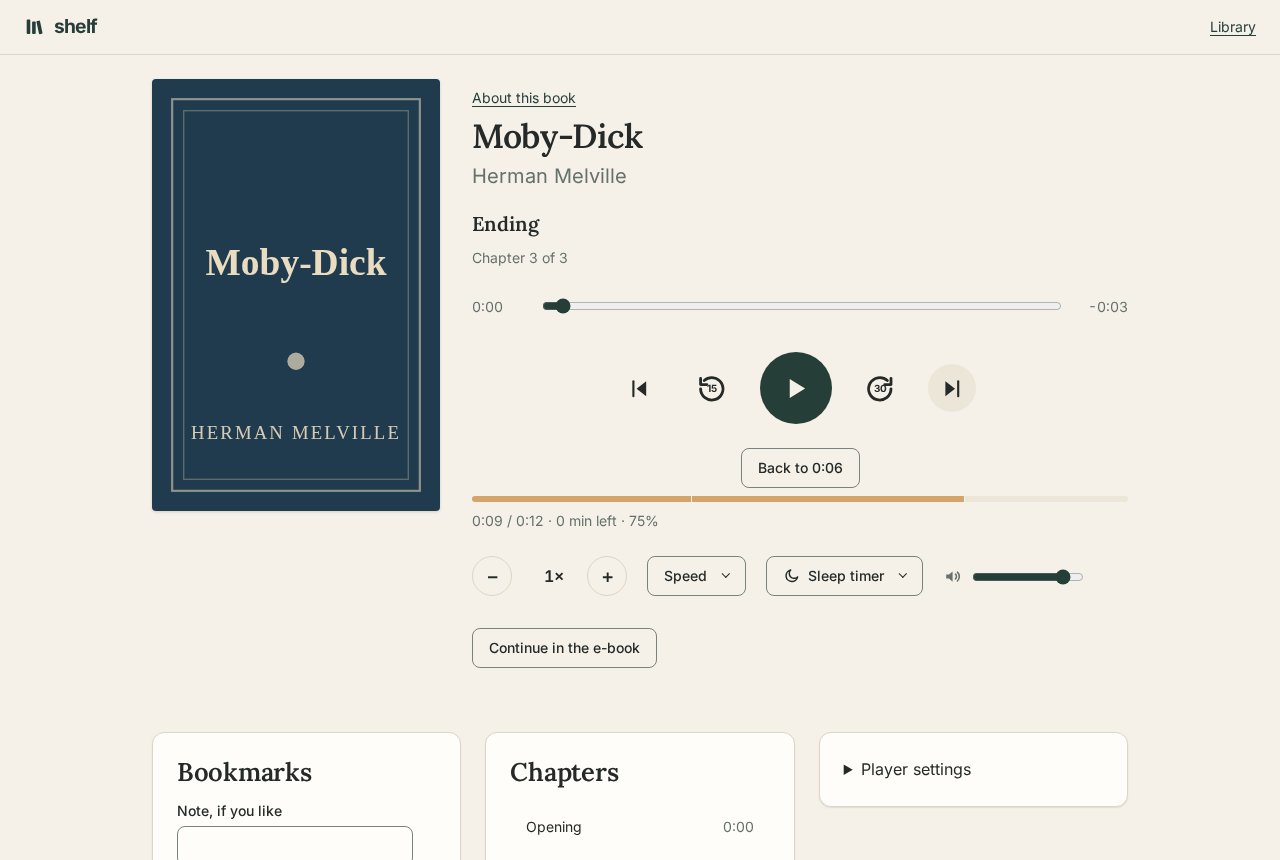
- Undo a jump. After a move to another chapter, along the scrubber, from the chapter list, or to a bookmark, Back to … under the buttons returns to where you were, for ten seconds.
- Picking up the thread. Played again after a pause, the book starts a little before where it stopped: 5 seconds after half a minute away, 10 after five minutes, 20 after an hour, and never before the start of the chapter. Turn it off under Player settings.
- Volume, kept on that device.
- Keys. Space plays and pauses, the arrow keys skip, Shift and an arrow move by chapter,
[and]change the speed, and M mutes. - Bookmarks. Bookmark this moment keeps where you are, with a note if you like. Each bookmark shows its chapter or track and time, and Go there goes back to it.
- Lock screen and headphones. While a book plays, a phone's lock screen and notifications, headphones, a car, or a smartwatch show the chapter, the book, its author, and cover, with the whole book as the scrubber. Their buttons play and pause, skip, scrub, and go to the previous or next chapter.
Listening while you browse
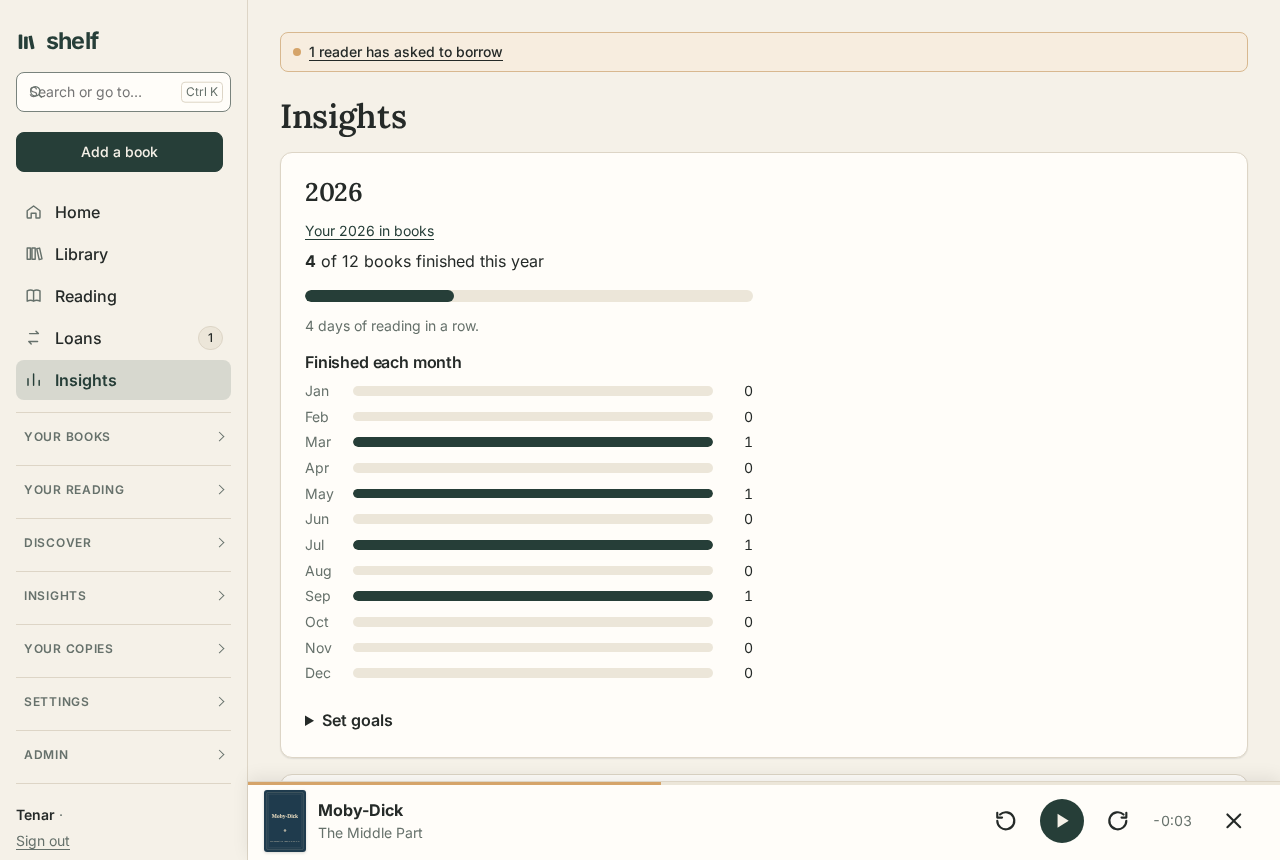
Leave the player and the book plays on in a bar at the foot of every page, with its cover, chapter, play and pause, skips, and the time left in the chapter; its title opens the full player again, and × closes it. After a reload it waits there, paused where you stopped. Play while you browse on a book's page, and the play button on a book being read in the library, start a book there without leaving the page.
Listening offline
Keep for listening offline on a book's page saves every track in that browser, with a count of the tracks as they come down. From then on the book plays from the device, which spares your data; and when the shelf can't be reached, the offline page (the one any page turns into without a connection) lists it under Kept for listening with a player of its own. Where you stop, and how long you listened, go back to the shelf once it answers again. Kept for listening offline · forget removes the tracks.
A long recording takes a lot of room, often several hundred megabytes. Shelf asks the browser to keep it rather than clear it when space runs short; a browser may still refuse, or clear it if you clear the site's data.
When the book ends
Playing to the end of the recording marks the book Finished, with today's date, and starts its place over. A borrower's ending leaves the owner's book as it was.
Time spent listening
Insights shows how long you have listened today, this week, and this year, a bar for each of the last two weeks, and the books you listened to most this year. The time is counted by the clock while a book plays, not by how much of the book went by, so listening at 2× counts the minutes you spent. A day of listening keeps your reading streak going. The library's Reading now shows how long is left of an audiobook.
A borrower listening to a book lent to them has their own place, bookmarks, and listening time.
Read-along
With a speech-to-text service set up (see below), an audiobook can be transcribed: on the book's page, under the recording, choose Make the transcript. Search then finds what is said in it and opens the player at that moment.
A book that has both an EPUB and an audiobook can go further and be matched word by word: choose Make the read-along. Shelf sends the recording to the service a piece at a time (it shows how far it has got, and carries on after a restart), then matches every word heard to the words of the e-book. Then:
- In the reader, Listen along plays the audiobook from the first word on the screen and marks each word as it's read, scrolling or turning the page to keep it in view, and going on into the next chapter. Double-tap a word to move the recording there. Stop listening along pauses it.
- Continue in the audiobook and Continue in the e-book keep your place to the word, rather than by chapter.
Text the recording doesn't read (a contents page, notes, an index) is left out, and so is narration the book doesn't have (Audible's opening and closing credits). The book's page shows how much of the text found its place; a low share usually means a different edition. A borrower, or a child the book is shared with, can listen along too. If either file changes, make the read-along again.
Setting up speech-to-text
Shelf uses any service with OpenAI's transcription API and word times. Set ReadAlong:Url to its transcriptions address:
- At home, free: Speaches (faster-whisper) runs in Docker beside Shelf;
ReadAlong:Urlishttp://speaches:8000/v1/audio/transcriptionsandReadAlong:Modela Whisper model such asSystran/faster-whisper-small. On a CPU, hearing a book takes a fraction of its length; with a GPU, much less. - OpenAI:
ReadAlong:Urlishttps://api.openai.com/v1/audio/transcriptions,ReadAlong:Modeliswhisper-1, andReadAlong:ApiKeyyour key. It is paid by the minute, and takes files of up to 25 MB, so Shelf needs ffmpeg to cut longer tracks: build the image with--build-arg FFMPEG=true.
When ffmpeg is there, Shelf always cuts tracks into ten-minute pieces, which shows progress as it goes and loses less if something fails. The recording goes to the service you choose and nowhere else.
Podcasts
Podcasts, under Discover in the sidebar, follows podcasts by their feeds. Search by name (Apple's podcast directory finds most), or paste a feed's address. To bring the podcasts you follow in another app, export them from it as an OPML file and choose it under Bring podcasts from another app; Save the podcasts you follow as OPML takes them the other way.
- Shelf reads each feed every hour. When you first follow a podcast, its newest three episodes wait to be heard and the older ones count as heard, so years of back episodes don't pile up; Mark as new brings any back.
- Keep downloaded keeps the newest unplayed episodes on the shelf (three, by default), so they play even when the podcast's own server is slow. A played episode's file goes a day later. Download keeps any other episode.
- Play plays an episode in the same player as audiobooks, in the mini player as you move around, with its speed, sleep timer, lock-screen controls, and place, which is kept on the shelf for any device. An episode heard to the end is marked played.
Each reader follows their own podcasts. Podcasts aren't part of the library export or the time-spent statistics.
Audiobooks and e-books together
A book can have both an e-book and an audiobook. Each keeps its own place. Bringing a book from Audiobookshelf that has both brings both onto one book.
Switching between them
With an EPUB and an audiobook on the same book, the player has Continue in the e-book, and the reader has Continue in the audiobook. Each opens the other at the same point: the chapter, and how far through it.
Shelf finds the point by the chapters' names first. When the recording's chapters (or its tracks) are named like the book's (Chapter 7, Seven, 03 - Chapter VII), those are lined up with each other. Between them, and in a recording whose parts are named nothing useful, it goes by how far through the text or the recording you are, leaving out the e-book's cover, title page, and contents. It does not listen to the recording, so the point is usually within a page or two; a recording with an introduction the book lacks, or an abridged one, can land further off. PDFs and comics do not switch.